The Toolbox
Connect your inbox.
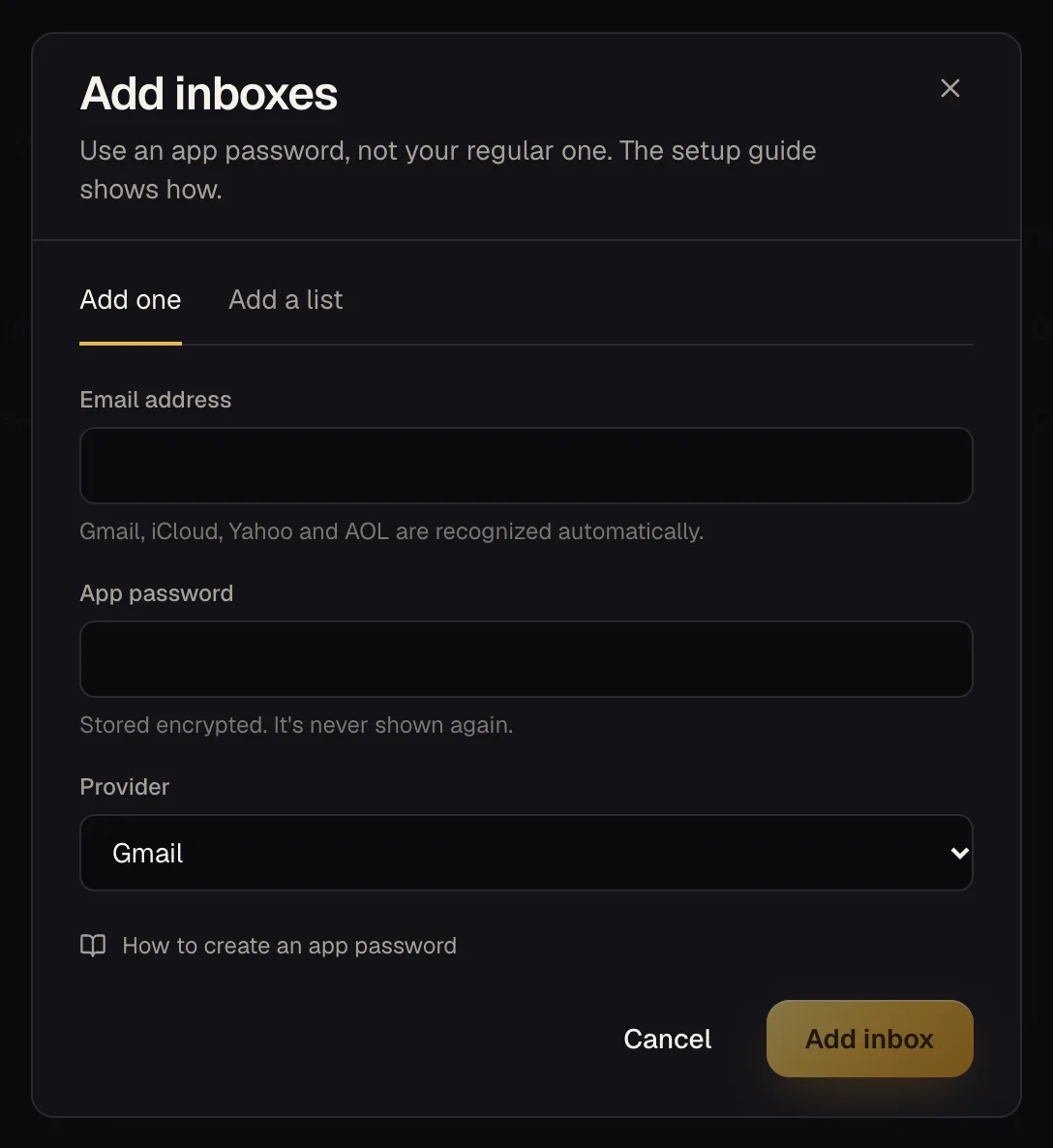
Your order and shipping emails are how orders show up with what you really paid, whether they shipped and where they are. Connecting an inbox takes a couple of minutes with an app password.
Before you start
- Use an app password, not your normal password. It's a separate password made just for this. Treat it like a real password, and you can cancel it any time without changing your email password.
- Order emails should land in the Inbox folder of the address you connect. If you forward mail (for example from iCloud's Hide My Email), forward it into the inbox you're connecting, and check that no rule sends retailer mail to another folder or to spam.
- Outlook and Hotmail addresses can't be used. Microsoft no longer allows app-password logins over IMAP. Forward that mail to a Gmail, iCloud or Yahoo address and connect that one instead.
- Spam is read too. We also look in the spam folder for store emails, so a confirmation that lands there still counts.
- We only read. We never send, move, delete or mark anything as read. From each store email we keep only the order number, the amount, the items, the tracking and the outcome. (The desktop app's inbox cleaner can delete mail, but only from your computer and only when you tell it to.)
Create your app password
Gmail
- 1Turn on 2-step verification at myaccount.google.com/security . App passwords need it.
- 2Open myaccount.google.com/apppasswords , name it something like “EvenBetterTrading”, and create it.
- 3Copy the 16-character password Google shows you. It's only shown once. IMAP is already on for every Gmail account.
- Gmail limits how many connections can be open at once. If you use many tools on one Gmail account, you may see occasional “took too long” messages; we retry automatically.
iCloud
- 1Sign in at account.apple.com and open Sign-In and Security, then App-Specific Passwords.
- 2Create one named “EvenBetterTrading” and copy it.
- 3Use your full iCloud address (ending in @icloud.com, @me.com or @mac.com) as the login.
Yahoo
- 1Go to login.yahoo.com/myaccount/security .
- 2Scroll to Other ways to sign in and choose Generate app password.
- 3Name it and copy the password.
AOL
- 1Go to login.aol.com/myaccount/security .
- 2Under Other ways to sign in, generate an app password and copy it. AOL addresses are recognized automatically.
Any other server
- 1If your email is on its own domain, ask your host for the IMAP server name (for example imap.example.com) and enable IMAP. Use port 993 unless they say otherwise.
- 2When you add it, include the server. In a list, that looks like you@example.com:password|imap.example.com|993.
Adding it
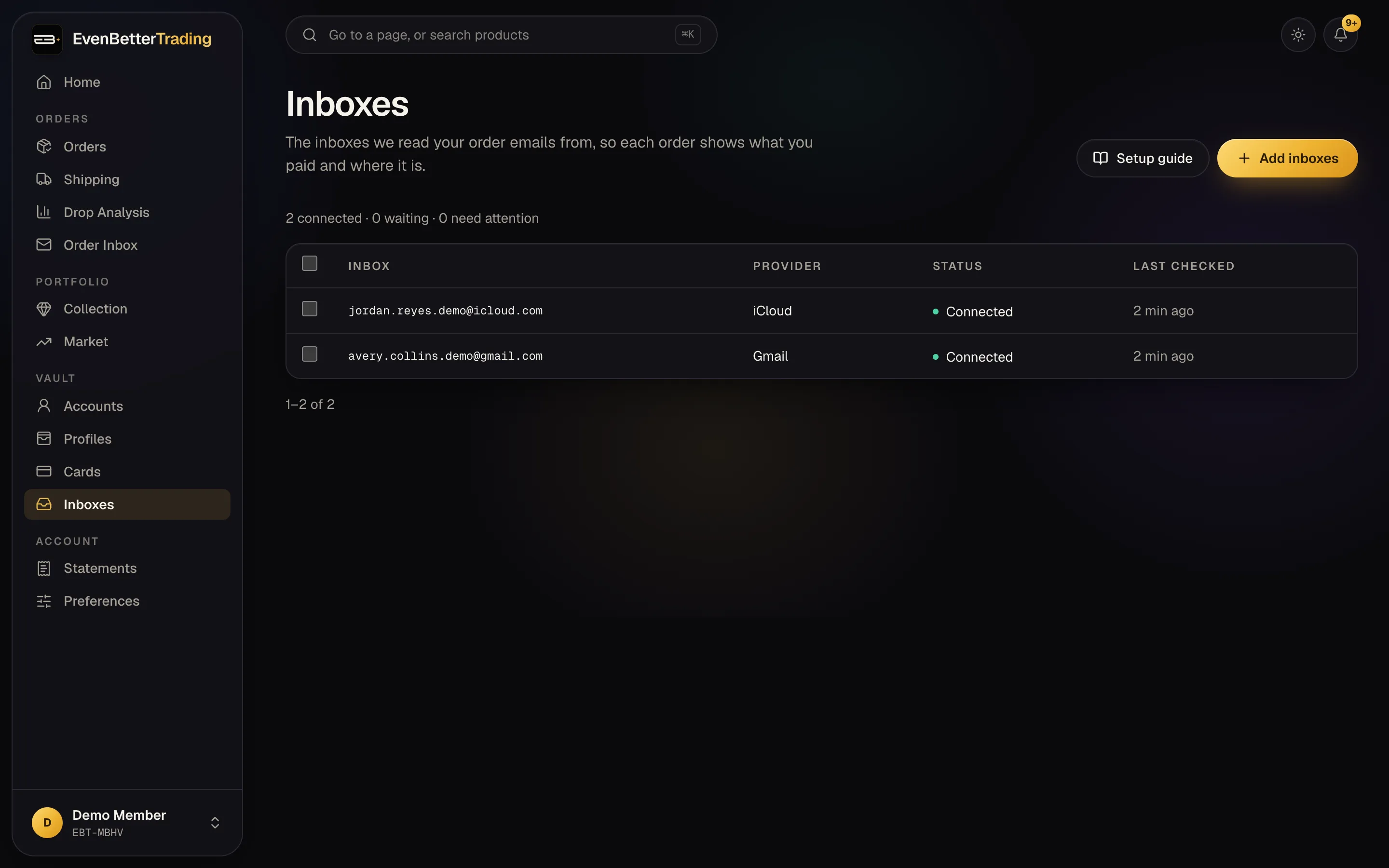
For the Toolbox, add it under Inboxes. For the ACO, add it under Vault → Inboxes. The steps are the same.
- 1Choose Add inboxes.
- 2Add one (email and app password), or paste a list with one per line as email:password, the same format your bots use.
- 3It shows Waiting until we sign in, usually within a couple of minutes, then Connected. If there's a problem, the message says what to fix.
Collector connects up to 3 inboxes; Pro has no limit. To find orders from before you connected, use Bring in past orders.
Troubleshooting
Sign-in failed+
Use the app password, not your normal password. Make sure 2-step verification is on, and that you copied it without extra characters. If in doubt, delete it and make a new one.
IMAP is turned off+
Some providers and workplace or school accounts have IMAP off. Turn it on in the email settings, or connect a different address.
Couldn't reach the mail server+
Check the server name and port for a custom domain. Gmail, iCloud, Yahoo and AOL need no server details.
Took too long+
The mail server was slow or Gmail was limiting connections. We try again automatically; nothing to do.
Connected, but orders don't update+
The store's emails need to arrive in this inbox. Check any forwarding rules, and that the order was placed with an address that forwards here. New stores take a few minutes after the email arrives.
Codes aren't being picked up by my bot+
Add the same email and app password to your bot's IMAP settings. Codes must arrive in the Inbox folder, and only one tool logging in at a time is easiest for Gmail.
Never share an app password with anyone you don't trust with your mail. If one is ever exposed, delete it in your email settings and make a new one.