The Toolbox
Slabs, with the population behind them.
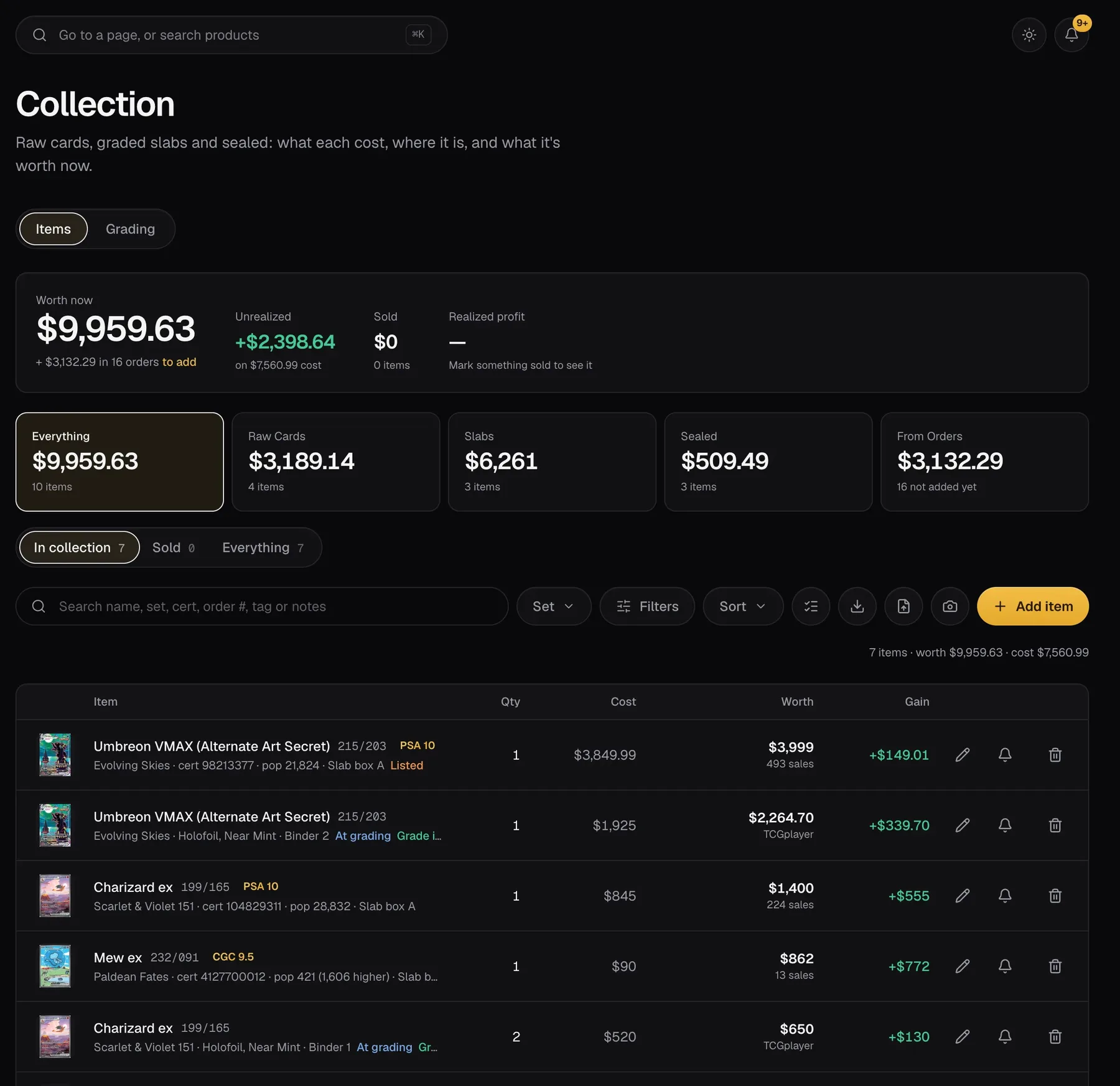
Graded cards are priced by their exact grade, from real sales, with the population count next to every grade.
Adding a slab
- On Collection, press Add item and pick graded.
- For a PSA slab, type the cert number. The card, the grade and the population fill in on their own.
- For other graders, search for the card and pick the grader and grade.
Or scan the label with your camera.
A card's page
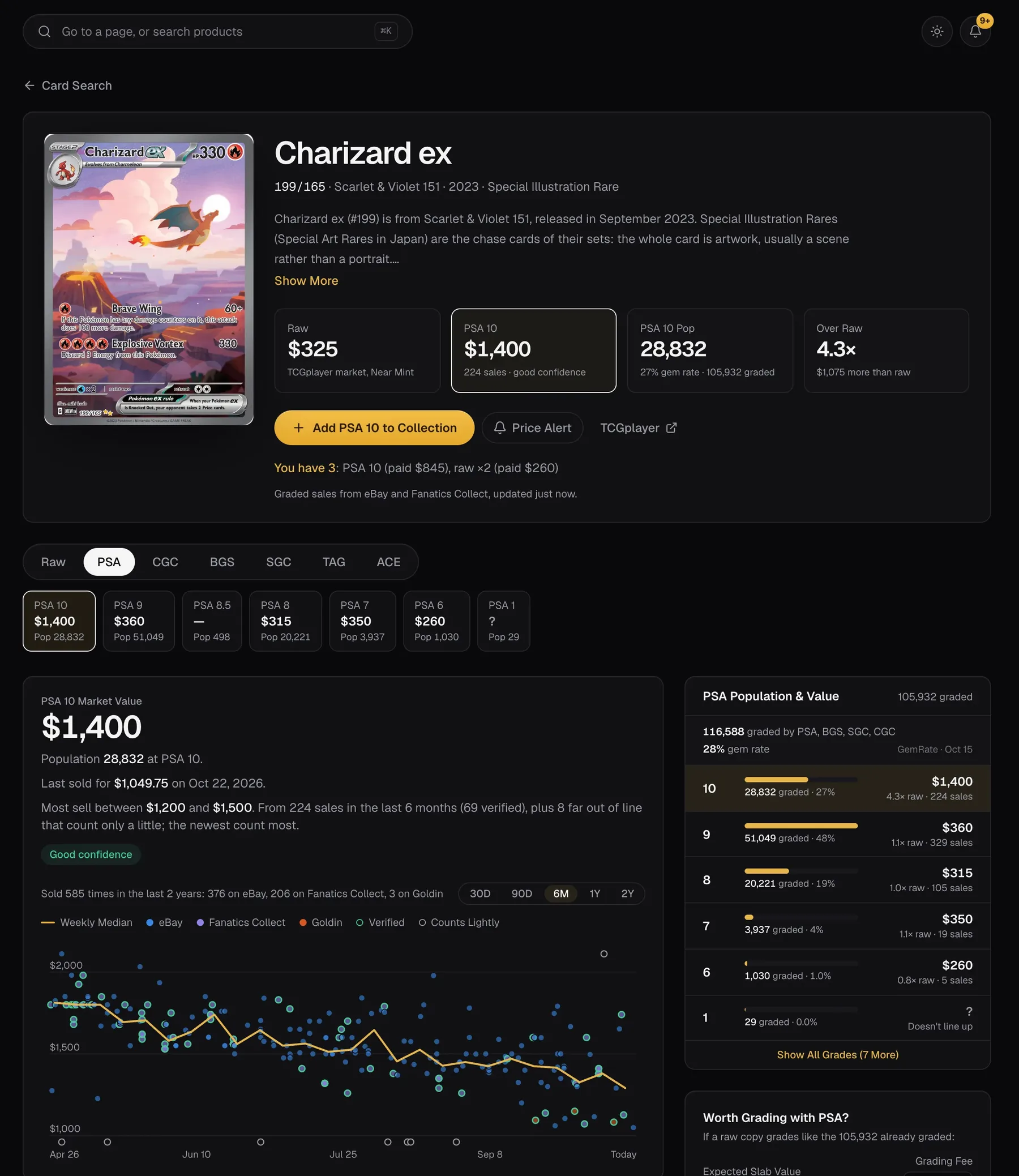
Search any card on Market, like “charizard 151 psa 10” or “moonbreon”. Put a grade in and the results show what that grade sells for. Each card's page has:
- Value by grade for PSA, CGC, BGS and SGC, from recent real sales on eBay, Fanatics Collect and the auction houses, with the range most sell in.
- Population next to each grade, and the gem rate: how many came back a 10.
- Every sale on a chart, and the recent sales with links. Sales marked Verified are confirmed paid prices; eBay best offers are marked price not confirmed and count for less.
- Worth grading? works out what a raw copy is likely worth graded, after the fee.
Population lookups
Population comes from the graders' reports. Each time we fetch fresh numbers for a card you're looking at, that's a lookup. Collector includes 50 a month; Pro has no limit. Past the limit, you still see the last numbers we saved.
Grading submissions
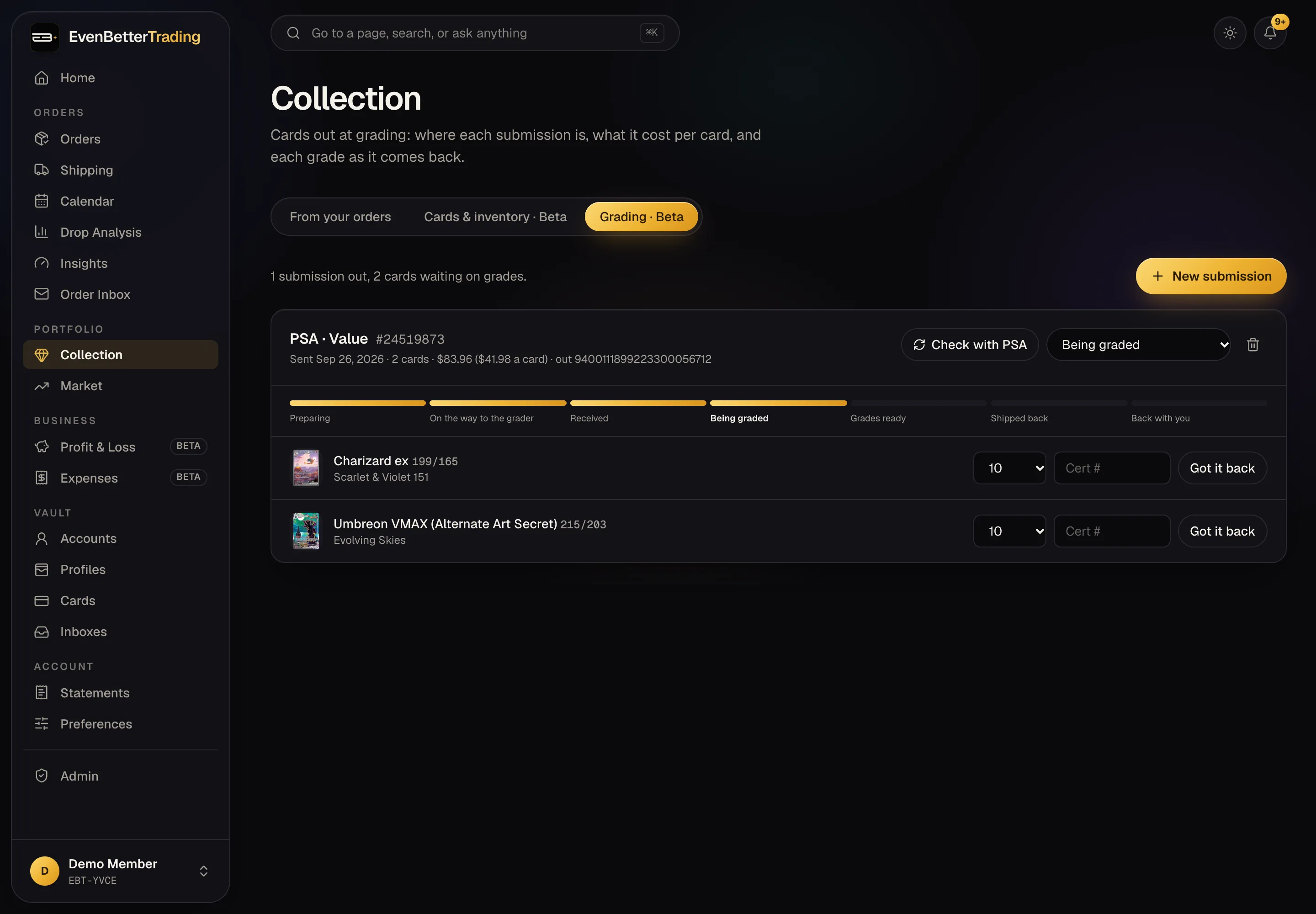
Sending cards to PSA, CGC or BGS? Add the submission under Grading: the grader, the service, their order number, what it cost, and the cards in it.
- Each submission shows where it is, from sent to back with you. PSA submissions update on their own once a day.
- When a grade comes back, enter it and the cert. The card becomes a slab in your collection, and its share of the grading cost is added to what it cost you.
Your slabs and their value show on the iPhone app and the desktop app too.