ACO
Profiles that stick.
The accounts, profiles and cards we check out with for the ACO. Keep them right and up to date: we use whatever is saved here on every release.
Adding profiles
Profiles live under Vault → Profiles. Each one gets its own tag (like EBT-4F2A-07), and that tag is what the bots see instead of your details. It's also how every checkout finds its way back to you.
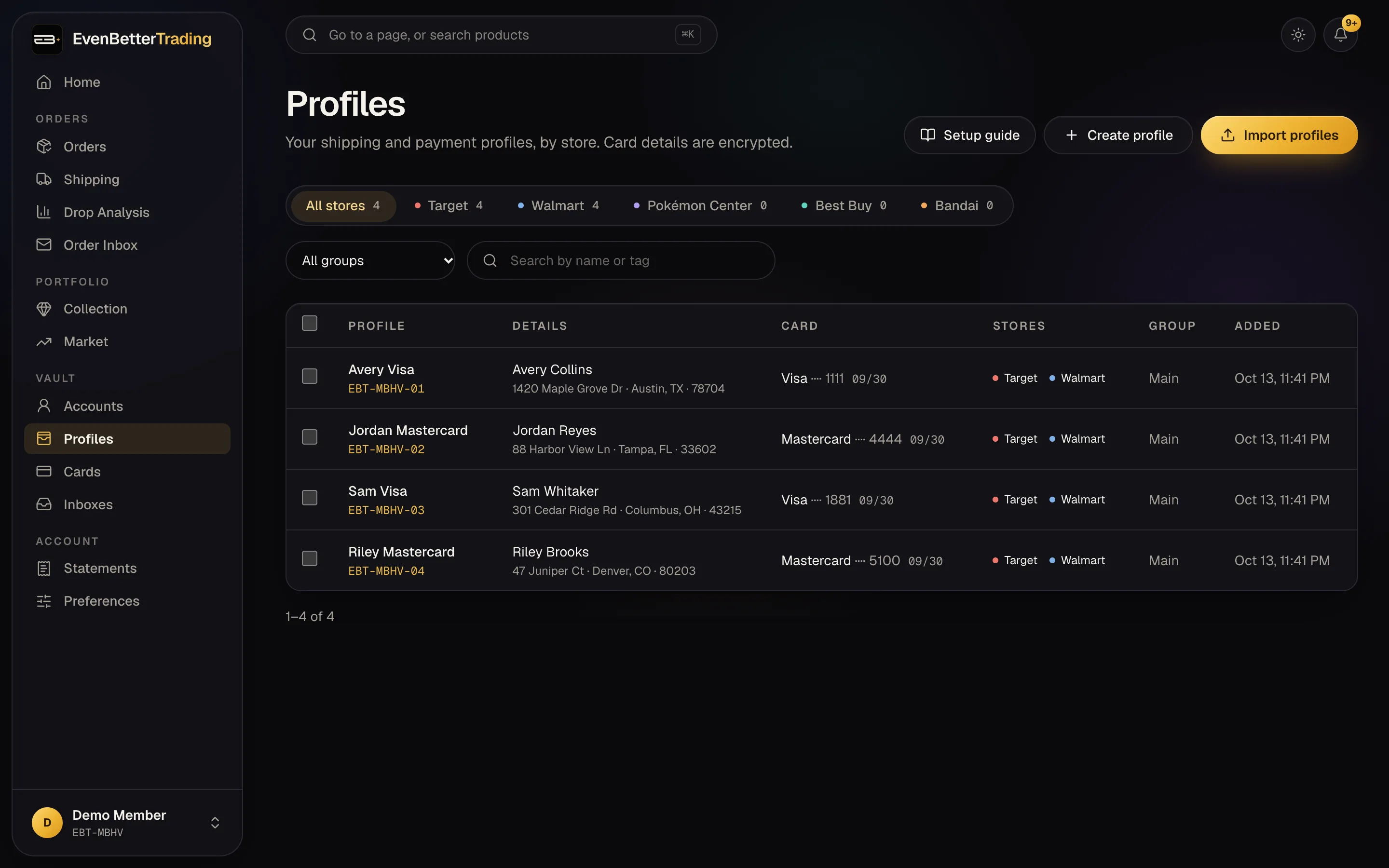
To add one by hand, press Create profile. It takes three short steps:
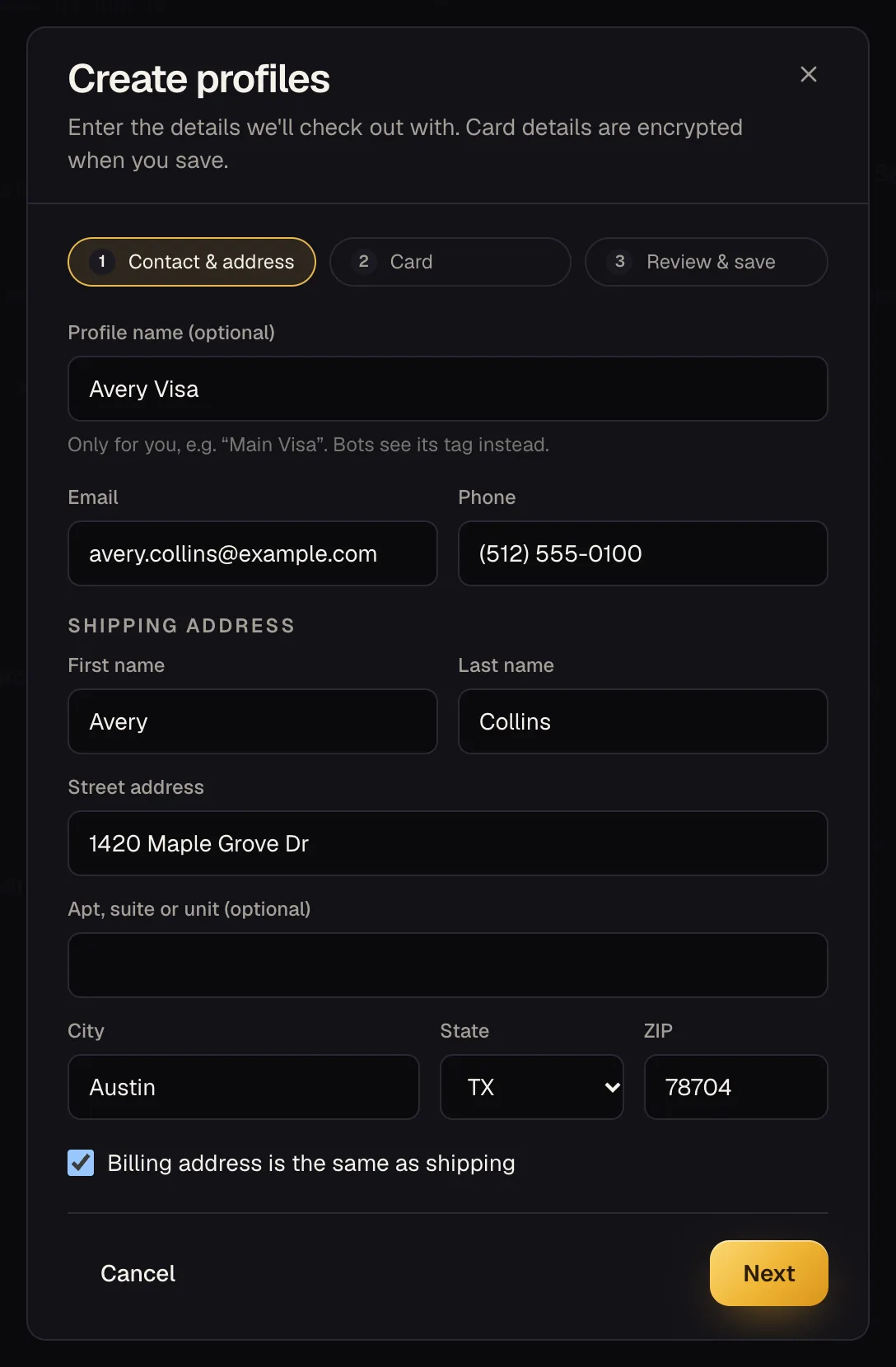
- Contact & address. The name, email, phone and shipping address the order goes out under. The profile name is just for you.
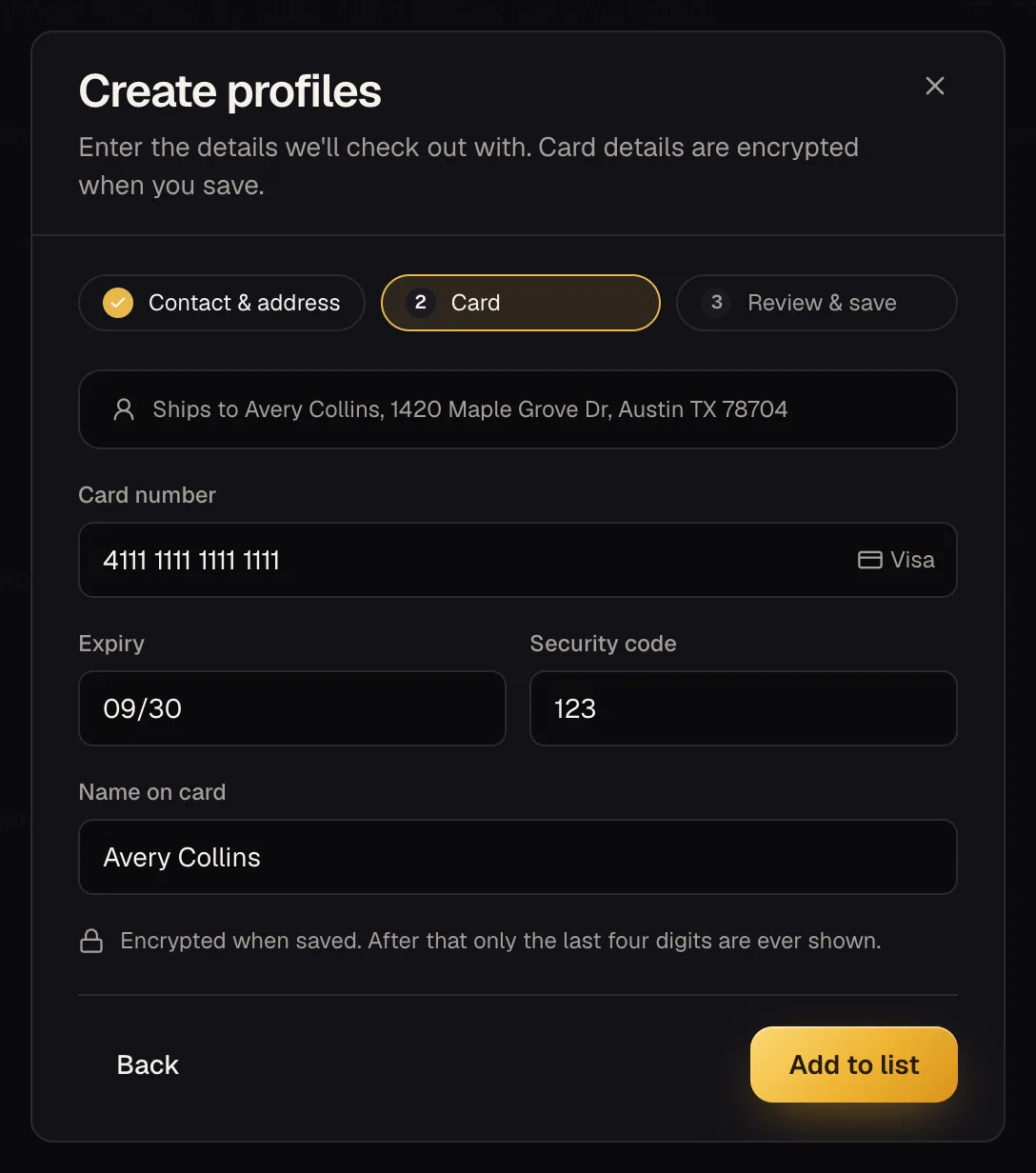
- Card. The card to check out with. It's encrypted the moment you save; after that only the last four digits are ever shown.
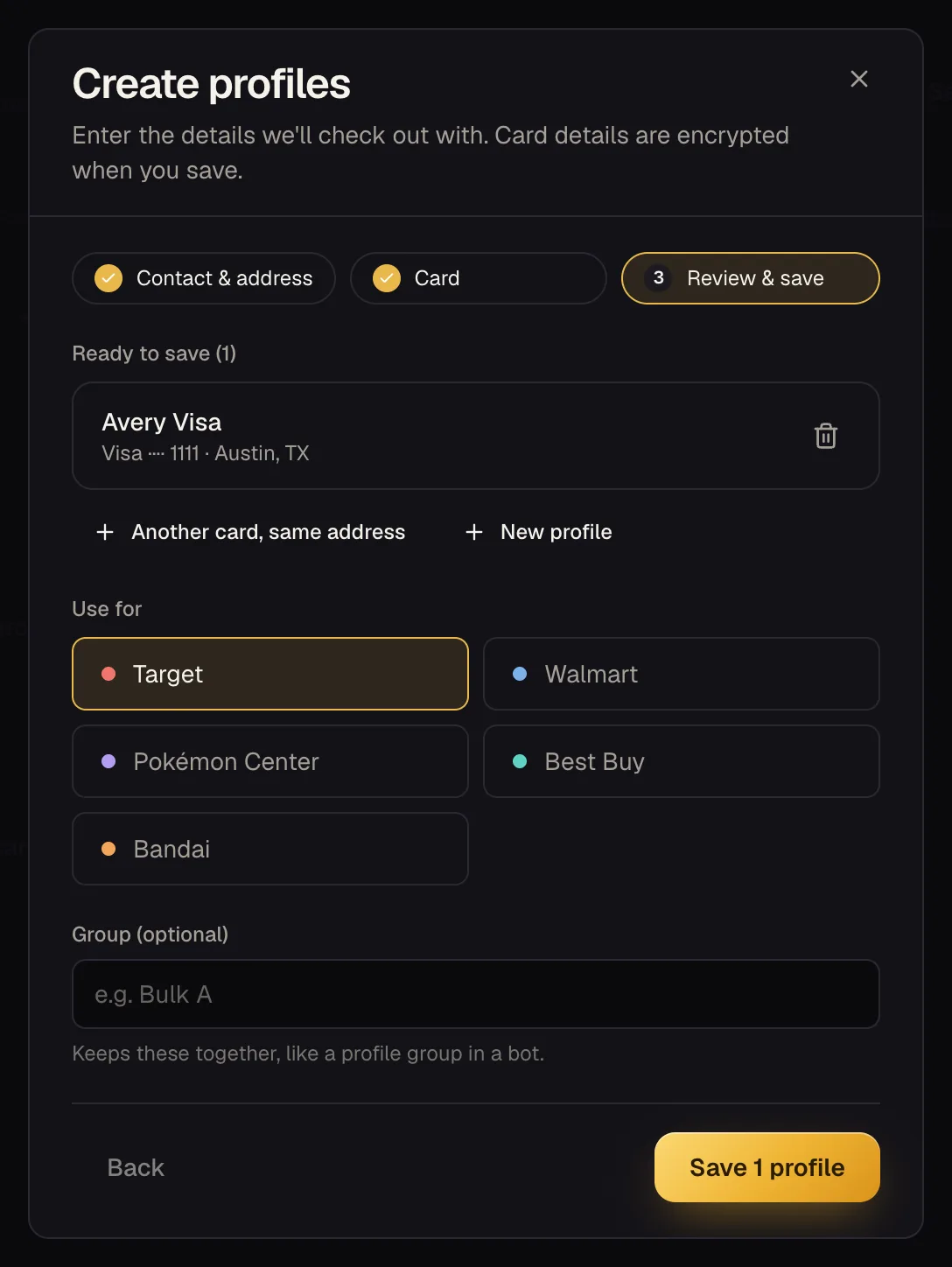
- Review & save. Pick the stores this profile is for, and add another card on the same address or a whole new profile before saving them all at once.
1. Contact & address
2. Card
3. Review & save
Already have them in a bot?
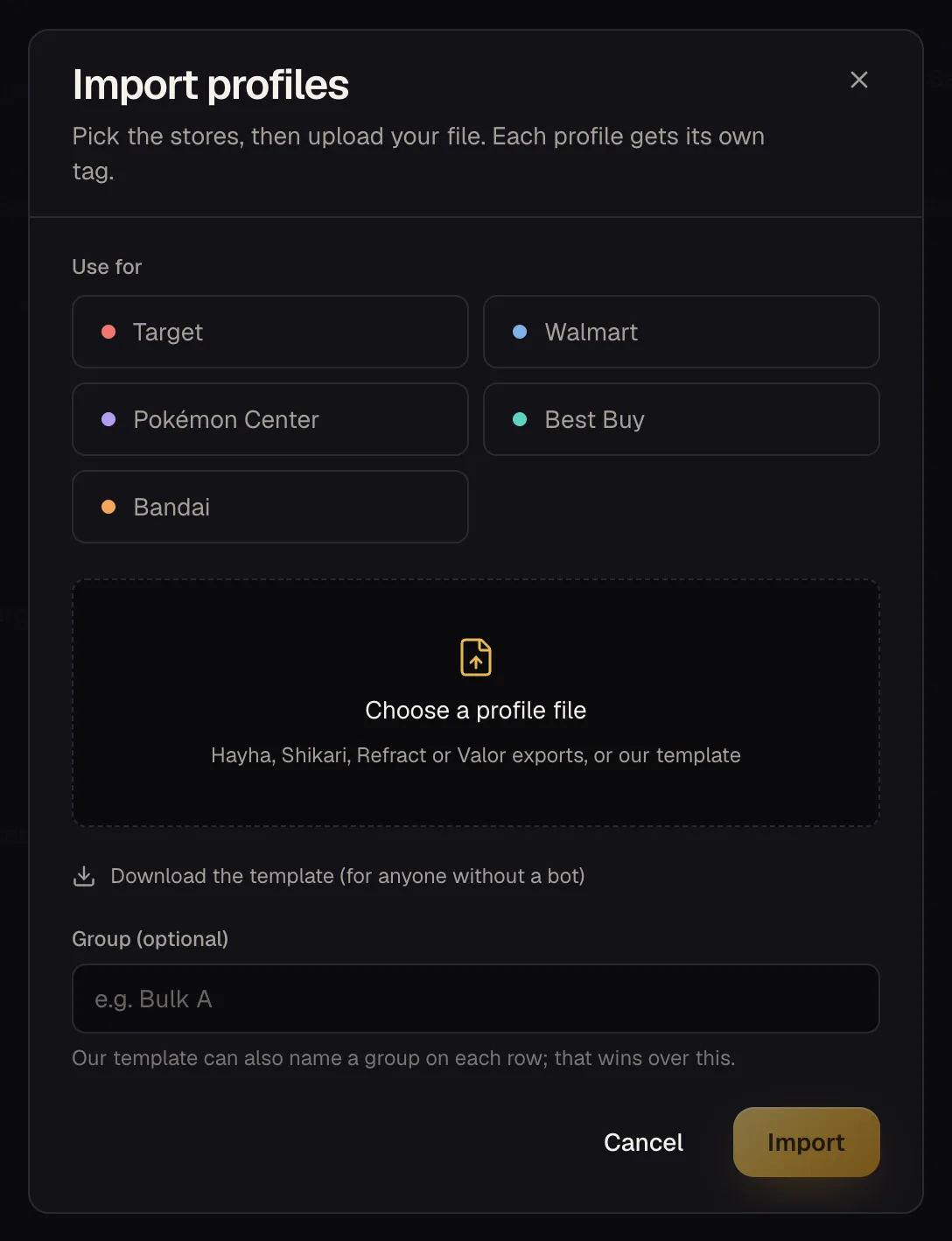
Press Import profiles, pick the stores and drop in your export. Hayha, Shikari, Refract and Valor files all work as they are. No bot? Download our template, fill it in, and import that instead.
A group (like “Bulk A”) keeps a set of profiles together, the same way profile groups work in a bot.
Editing your info
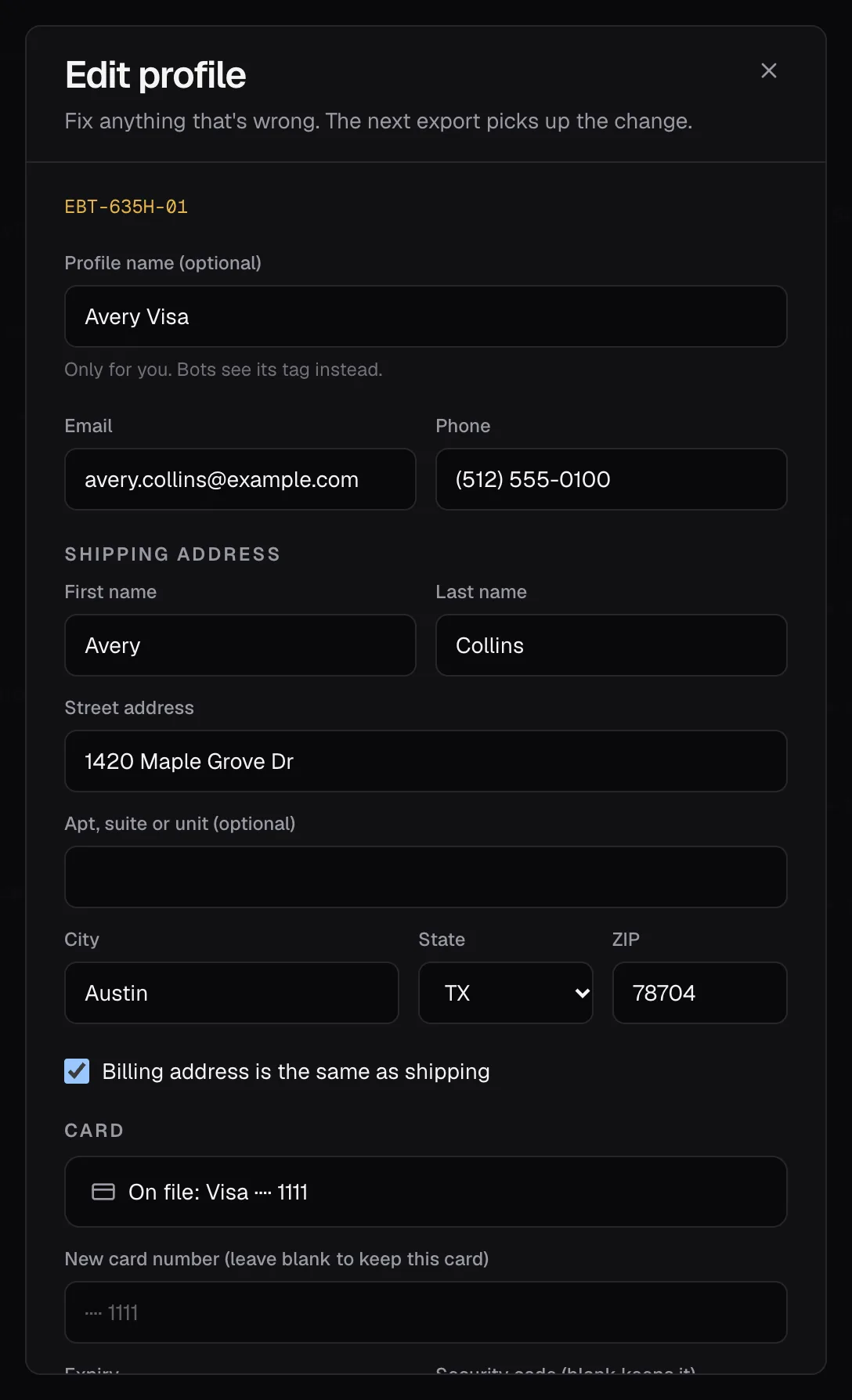
Something changed, or went in wrong? Fix it yourself, any time. Every row under Accounts, Profiles and Cards has an Edit button.
- Profile: the name, address, email or phone.
- Account: changed the password at the store? Update it here so we check out with the right one.
- Card: the name, the expiry, or a new card in its place.
We pick up the latest info each release, so edits before a drop count for that drop. Each row shows when it was last edited.
Before you start
These apply at every store.
- Mix jigged addresses with real, untouched ones. Two profiles that ship to the exact same address get linked, and an address that's been banned once takes every profile using it down with it — that's what a jig is for: a small, consistent variation, like spelling out “Street” instead of abbreviating it, adding a middle initial, or a unit number that doesn't exist. Small is enough — it still has to reach your door. But don't jig everything: a set that's all jigged looks as manufactured as one that's all identical. Keep a few profiles on the real, unmodified address too — that mix of real and jigged is what actually reads as a normal set of shoppers, and it's part of what boosts stick rate. Never reuse the same jig twice.
- A real inbox, not a catch-all. Every profile needs its own working email address. Catch-alls and plus-aliases (you+target1@gmail.com) are easy for a retailer to spot and tend to see more cancellations. Connect the inbox here once you've got it so order confirmations get read automatically — see the inbox setup guide.
- One card per profile where you can manage it. A card that's shared across a pile of profiles connects them just as surely as a shared address does. A virtual or prepaid card you can generate a fresh number for is the easiest way to keep that 1:1.
- Name and phone are the least strict. A random first name is fine everywhere; keeping the last name real (or at least plausible) helps it read as an actual person. Any phone number works as long as the area code matches where the profile “lives.”
By retailer
Target
- NameRandom first name, any last name — doesn't need to be real, just consistent with the rest of the profile.
- AddressMix it up (see above). A couple of safe, low-effort jigs: write out “Street”/“Avenue” in full instead of abbreviating, or add a small, believable apartment/suite number. Leave some profiles on the real address, untouched. Skip the ZIP+4 — the 5-digit code is enough.
- EmailA real inbox per profile, connected here. Catch-alls hold up worse than a normal address.
- PhoneRandom number, real area code.
- CardA fresh virtual/prepaid card per profile beats reusing one across several. Target's own RedCard (debit or credit) tends to see fewer cancellations than an outside card if you have one, and it supports adding authorized users if you want to share it across a couple of your own profiles deliberately.
Walmart
- NameA random first name paired with a real-sounding last name tends to hold up better than a fully random one.
- AddressSame idea as Target: a small, consistent jig on some profiles (spell out the street type, add a unit number), and the real address left as-is on others. Avoid symbols in the address line and skip the ZIP+4.
- EmailA real inbox per profile, connected here — not a catch-all.
- PhoneRandom number is fine.
- CardKeep it to one card per account. Reusing a card across many Walmart profiles is one of the fastest ways to connect them.
Pokémon Center
Pokémon Center behaves a lot like Target, so treat it the same way — the same five fields, the same reasoning. One practical difference: checkout there runs off the profile alone, so there's no separate retailer account to set up first.
- NameSame as Target — random first name, any last name.
- AddressSame mix as Target — some jigged, some left real.
- EmailA real inbox per profile, connected here.
- PhoneRandom number, real area code.
- CardA fresh virtual/prepaid card per profile, same as Target.
None of this is a guarantee — retailers change what they flag, and what works can shift over time. Treat it as a starting point, not a fixed formula.