The Toolbox
Your orders.
Every order you place shows up on its own once the store emails you. Anything else you can add by hand or bring in from a spreadsheet.
Orders from your email
Once an inbox is connected, we read order confirmations and shipping emails from about a hundred stores that sell Pokémon and other TCG product: big-box stores, Pokémon Center, hobby shops and marketplaces. Each email adds or updates the order: what you bought, what it cost, when it shipped and the tracking number.
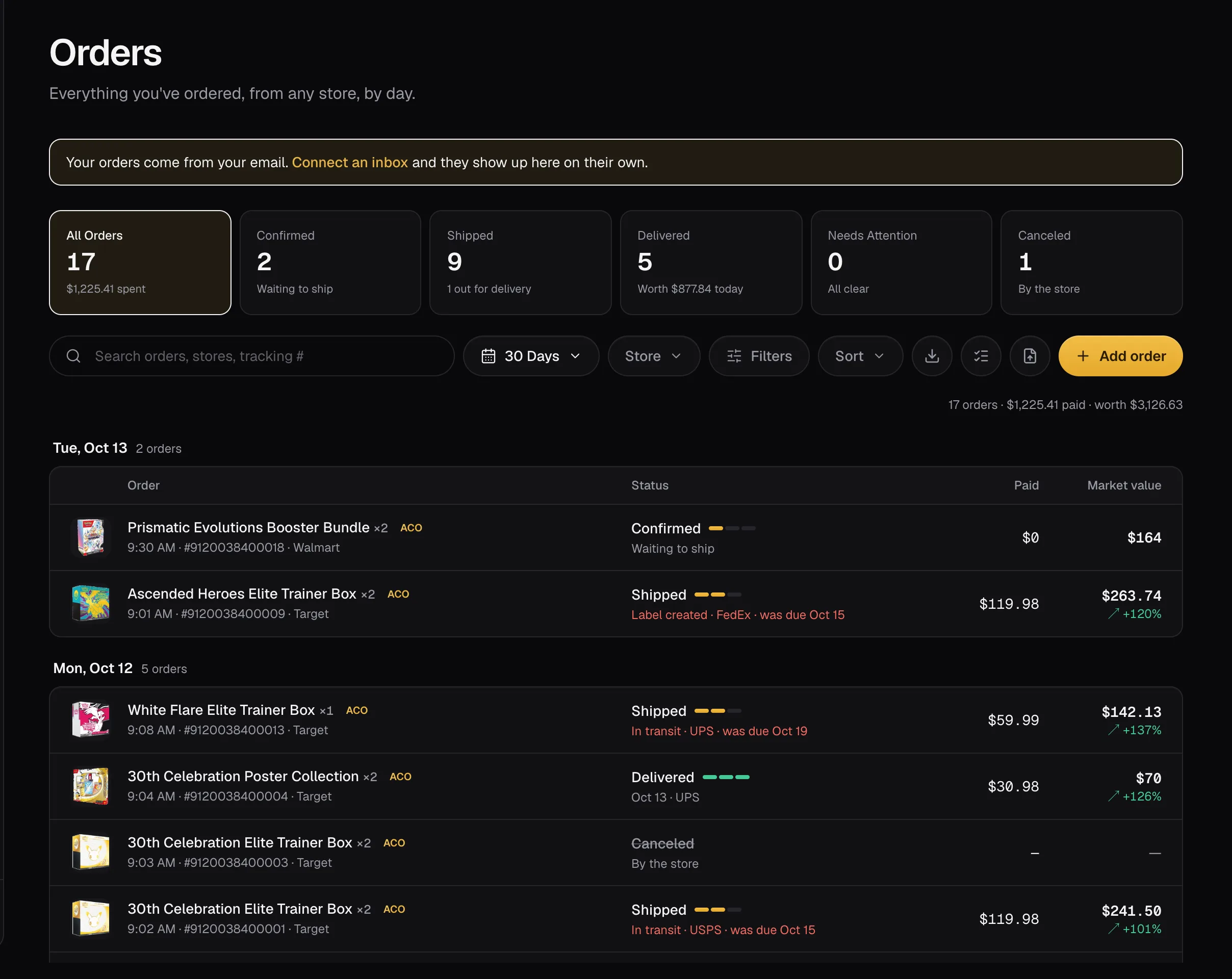
- Confirmed: the store took the order. Pokémon Center pre-orders show as Pre-order until they ship.
- Shipped and Delivered follow the package. See Tracking and the calendar.
- Canceled: the store canceled it.
Click any order for everything about it: items, what you paid, the average cost per item, the packages and their scans, and the emails it came from.
Adding an order by hand
- On Orders, press Add an order.
- Pick the store and the item, and add what you paid and the date.
- Add a tracking number if you have one, and we'll follow the package.
You can edit an order you added, mark it received or canceled, or delete it. An order that came from a store email can't be deleted, since the next email would bring it back; mark it canceled instead.
Importing a spreadsheet
Have past orders in a sheet, or an export from another tool? Choose Import Orders on Orders and pick a CSV with at least a date and an item column. You'll see what will be added and what's skipped before anything is saved. Up to 500 orders at a time.
The desktop app also takes Excel files. See Bring in past orders.
Into your collection
When an order arrives, add it to your collection with one click. It goes in at what you paid, so your gains are real from day one.
A price that says “pending” fills in when the store's confirmation email arrives. If it never does, check that the inbox the order went to is connected.